> ## Documentation Index
> Fetch the complete documentation index at: https://docs.magichour.ai/llms.txt
> Use this file to discover all available pages before exploring further.
# Authentication
> Create and manage API keys to authenticate your requests to the Magic Hour API.
## Overview
Magic Hour uses API keys to authenticate requests. Your API keys carry many privileges, so be sure to keep them secure! Do not share your secret API keys in publicly accessible areas such as GitHub, client-side code, and so forth.
All API requests must be authenticated by including your API key in the `Authorization` header:
```bash theme={null}
Authorization: Bearer your_api_key_here
```
## Creating Your First API Key
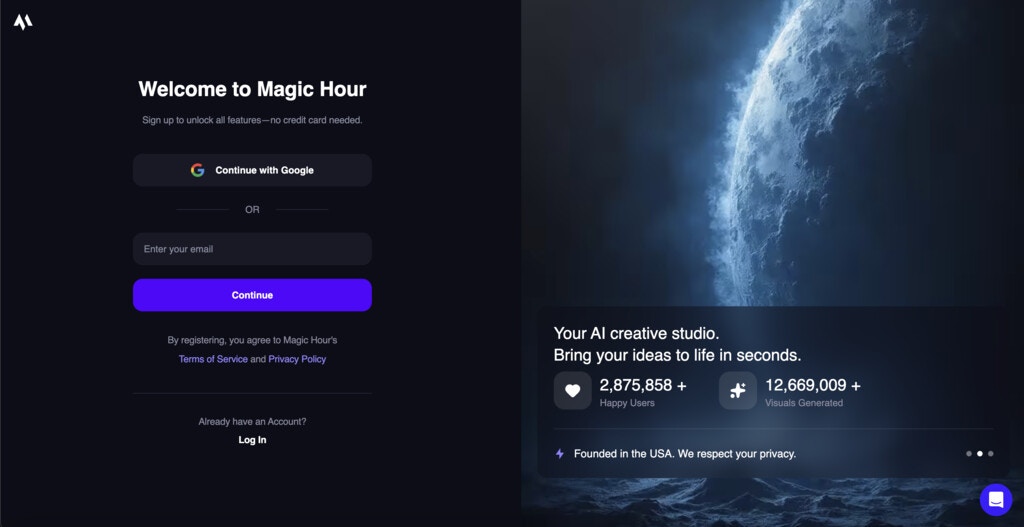
Visit [magichour.ai](https://magichour.ai/sign-up) and sign in to your account. If you don't have an account yet, you can create one for free.
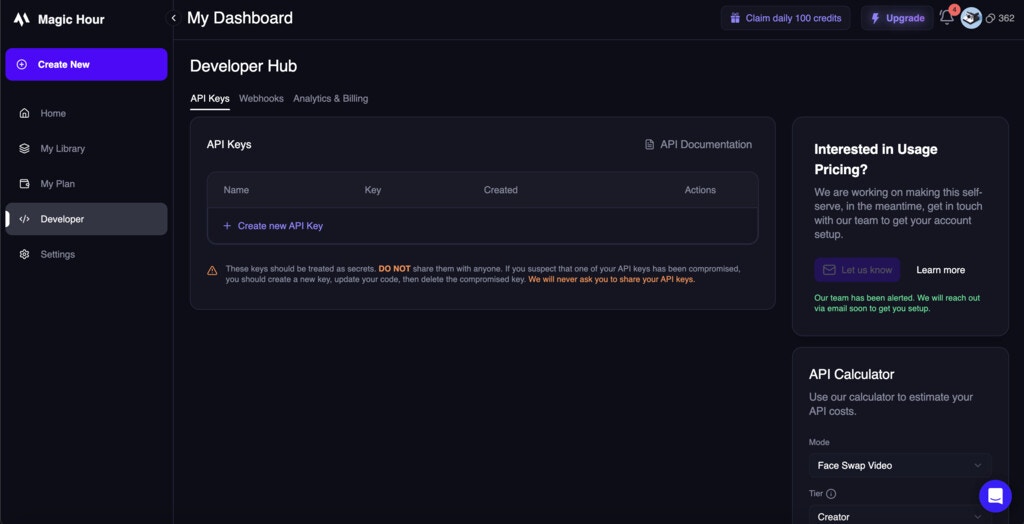
 Once signed in, go directly to the [API Keys section of the Developer Hub](https://magichour.ai/developer?tab=api-keys).
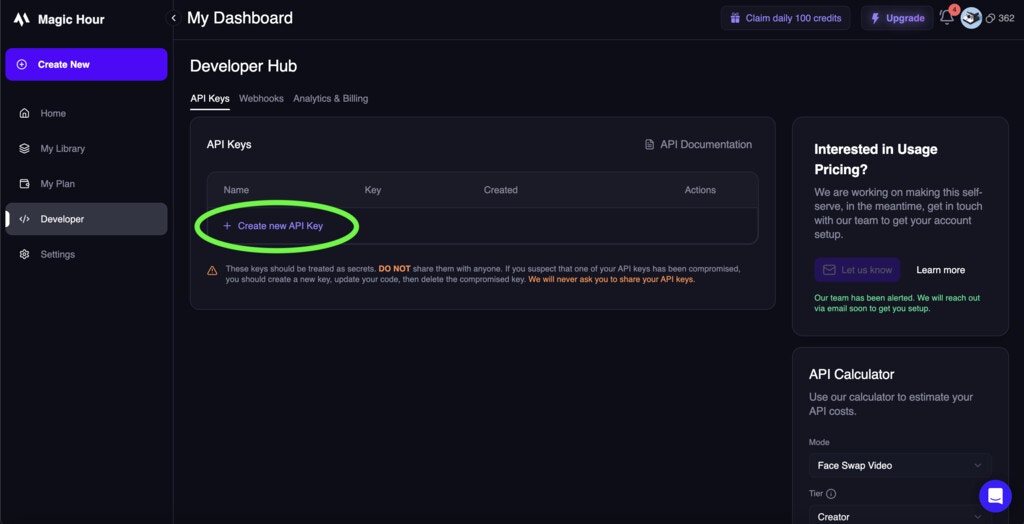
 Click the **"Create API Key"** button to generate a new key.
 Give your API key a descriptive name to help you identify its purpose later:
* **Name**: Choose a clear name (e.g., "Production App", "Development Testing", "Mobile App")
* **Permissions**: Select the appropriate permissions for your use case
Give your API key a descriptive name to help you identify its purpose later:
* **Name**: Choose a clear name (e.g., "Production App", "Development Testing", "Mobile App")
* **Permissions**: Select the appropriate permissions for your use case
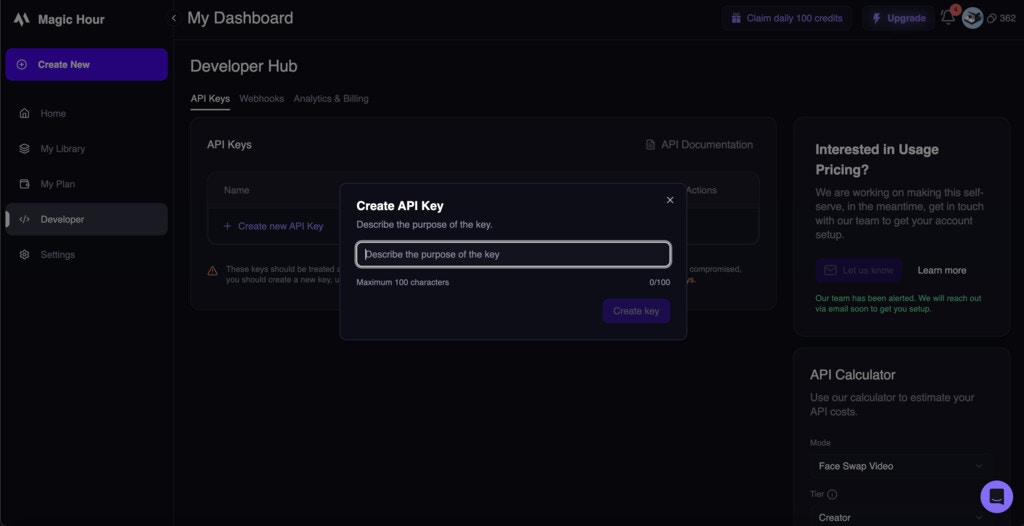 Click **"Create Key"** to generate your new API key.
**Important**: Your API key will only be shown once. Copy it immediately and store it securely.
Click **"Create Key"** to generate your new API key.
**Important**: Your API key will only be shown once. Copy it immediately and store it securely.
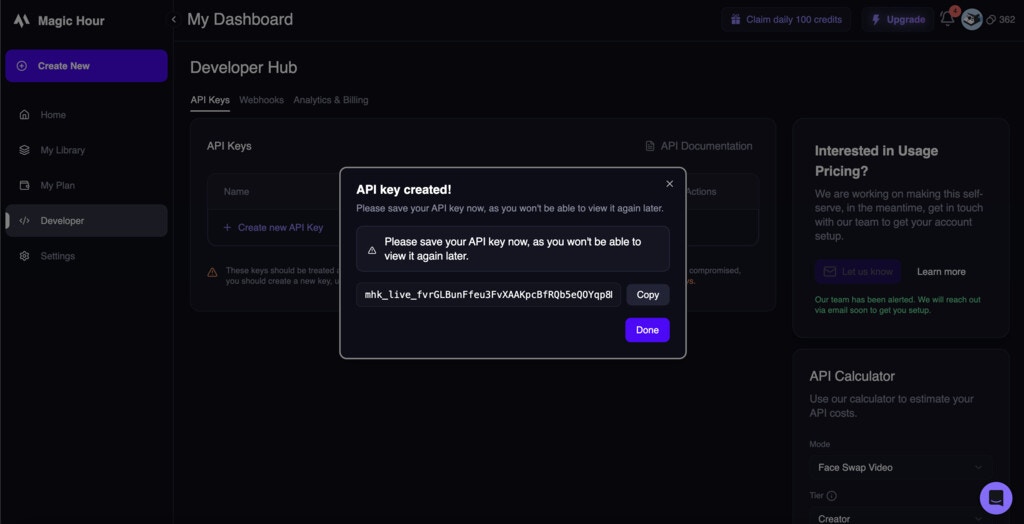 **Save your API key now!** You won't be able to see the full key again after closing this dialog. If you lose it, you'll need to create a new one.
## Managing Your API Keys
### Viewing API Keys
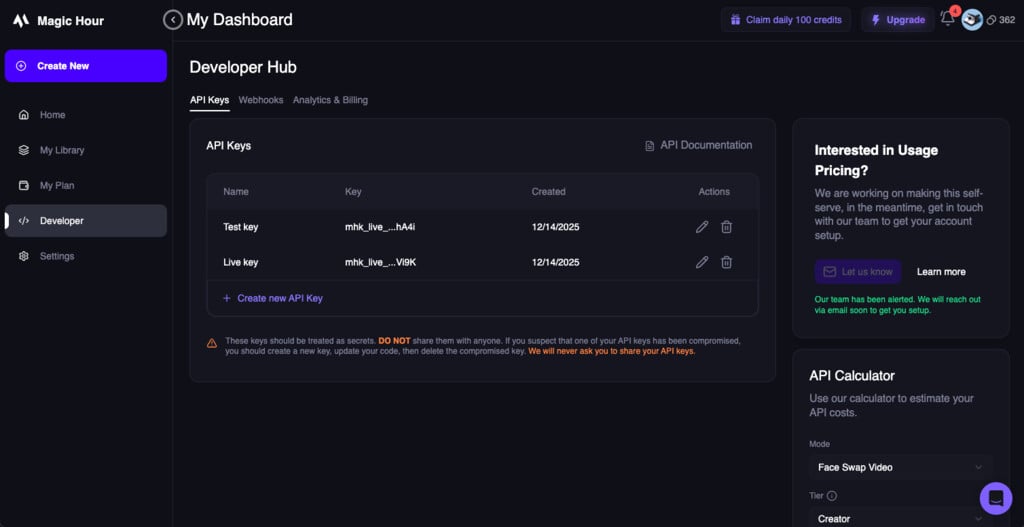
In the Developer Hub, you can see all your API keys with:
* **Name**: The descriptive name you gave the key
* **Last 4 Characters**: The last 4 characters of the key
* **Created**: When the key was created
**Save your API key now!** You won't be able to see the full key again after closing this dialog. If you lose it, you'll need to create a new one.
## Managing Your API Keys
### Viewing API Keys
In the Developer Hub, you can see all your API keys with:
* **Name**: The descriptive name you gave the key
* **Last 4 Characters**: The last 4 characters of the key
* **Created**: When the key was created
 ### Revoking API Keys
To revoke an API key:
1. Find the key in your API Keys list
2. Click the **Delete (Trash Icon)** button next to the key
3. Click "Delete key" to confirm the revocation
### Revoking API Keys
To revoke an API key:
1. Find the key in your API Keys list
2. Click the **Delete (Trash Icon)** button next to the key
3. Click "Delete key" to confirm the revocation
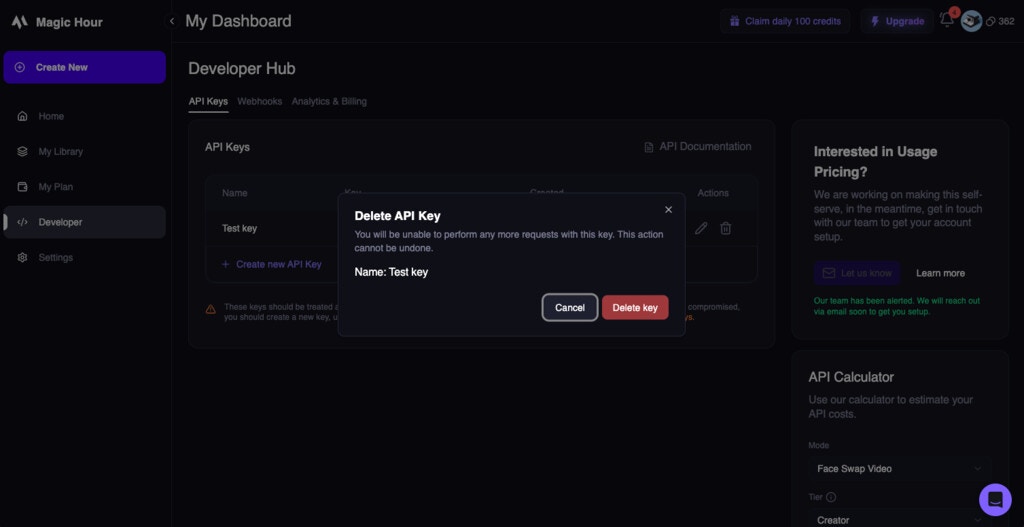 **Immediate Effect**: Revoked keys stop working immediately. Any applications using the revoked
key will start receiving authentication errors.
### Rotating API Keys
For security best practices, regularly rotate your API keys:
1. **Create a new API key** with the same permissions
2. **Update your applications** to use the new key
3. **Test thoroughly** to ensure everything works
4. **Revoke the old key** once you're confident the new key is working
## Using API Keys
### In Code
```python Python SDK theme={null}
from magic_hour import Client
# Initialize client with your API key
client = Client(token="your_api_key_here")
# Or use environment variable
import os
client = Client(token=os.getenv("MAGIC_HOUR_API_KEY"))
```
```javascript Node.js SDK theme={null}
import { Client } from "magic-hour";
// Initialize client with your API key
const client = new Client({
token: "your_api_key_here",
});
// Or use environment variable
const client = new Client({
token: process.env.MAGIC_HOUR_API_KEY,
});
```
```bash cURL theme={null}
curl -X POST "https://api.magichour.ai/v1/ai-image-generator" \
-H "Authorization: Bearer your_api_key_here" \
-H "Content-Type: application/json" \
-d '{
"image_count": 1,
"aspect_ratio": "16:9",
"resolution": "1k",
"style": {
"prompt": "A beautiful sunset over mountains"
}
}'
```
### Environment Variables
Store your API key as an environment variable for security:
```bash .env file theme={null}
MAGIC_HOUR_API_KEY=your_api_key_here
```
```bash Shell Export theme={null}
export MAGIC_HOUR_API_KEY=your_api_key_here
```
```bash Windows theme={null}
set MAGIC_HOUR_API_KEY=your_api_key_here
```
## Security Best Practices
### ✅ Do
* **Store keys securely** in environment variables or secure key management systems
* **Use different keys** for different environments (development, staging, production)
* **Rotate keys regularly** (every 90 days recommended)
* **Revoke unused keys** immediately
* **Monitor key usage** in the Developer Hub
* **Implement proper error handling** for authentication failures
### ❌ Don't
* **Never commit keys** to version control (Git, SVN, etc.)
* **Don't expose keys** in client-side code (JavaScript, mobile apps)
* **Don't share keys** via email, chat, or other insecure channels
* **Don't use production keys** in development environments
* **Don't ignore security warnings** about exposed keys
### Key Storage Solutions
**For Development:**
* Environment variables (`.env` files)
* Local configuration files (excluded from version control)
**For Production:**
* AWS Secrets Manager
* Azure Key Vault
* Google Secret Manager
* HashiCorp Vault
* Kubernetes Secrets
## Authentication Errors
Common authentication errors and how to resolve them:
### `401 Unauthorized`
**Cause**: Invalid or missing API key
**Solutions**:
* Check that your API key is correct
* Ensure the `Authorization` header is properly formatted
* Verify the key hasn't been revoked
## Monitoring Usage
**Usage-Based Pricing Only**: Analytics & Billing monitoring is only available for users on a
usage-based pricing plan. Subscription users can view basic key information in the API Keys
section.
For usage-based pricing users, track your API key usage in the Developer Hub:
* **Credit Usage**: Credits consumed by your requests
This helps you:
* Detect unusual activity that might indicate a compromised key
* Plan for capacity and billing
## Next Steps
Make your first API call with your new API key
Try the Magic Hour APIs with ready-to-run sample code. Just add your API key.
Use official SDKs for easier integration
Understand how API usage affects billing
Set up webhooks for real-time notifications
## Need Help?
If you're having trouble with authentication:
* Check our [troubleshooting guide](/get-started/quick-start#troubleshooting)
* Contact support at [support@magichour.ai](mailto:support@magichour.ai)
* Join our community on [Discord](https://discord.gg/JX5rgsZaJp)
**Security Concern?** If you believe your API key has been compromised, revoke it immediately in
the Developer Hub and create a new one.
**Immediate Effect**: Revoked keys stop working immediately. Any applications using the revoked
key will start receiving authentication errors.
### Rotating API Keys
For security best practices, regularly rotate your API keys:
1. **Create a new API key** with the same permissions
2. **Update your applications** to use the new key
3. **Test thoroughly** to ensure everything works
4. **Revoke the old key** once you're confident the new key is working
## Using API Keys
### In Code
```python Python SDK theme={null}
from magic_hour import Client
# Initialize client with your API key
client = Client(token="your_api_key_here")
# Or use environment variable
import os
client = Client(token=os.getenv("MAGIC_HOUR_API_KEY"))
```
```javascript Node.js SDK theme={null}
import { Client } from "magic-hour";
// Initialize client with your API key
const client = new Client({
token: "your_api_key_here",
});
// Or use environment variable
const client = new Client({
token: process.env.MAGIC_HOUR_API_KEY,
});
```
```bash cURL theme={null}
curl -X POST "https://api.magichour.ai/v1/ai-image-generator" \
-H "Authorization: Bearer your_api_key_here" \
-H "Content-Type: application/json" \
-d '{
"image_count": 1,
"aspect_ratio": "16:9",
"resolution": "1k",
"style": {
"prompt": "A beautiful sunset over mountains"
}
}'
```
### Environment Variables
Store your API key as an environment variable for security:
```bash .env file theme={null}
MAGIC_HOUR_API_KEY=your_api_key_here
```
```bash Shell Export theme={null}
export MAGIC_HOUR_API_KEY=your_api_key_here
```
```bash Windows theme={null}
set MAGIC_HOUR_API_KEY=your_api_key_here
```
## Security Best Practices
### ✅ Do
* **Store keys securely** in environment variables or secure key management systems
* **Use different keys** for different environments (development, staging, production)
* **Rotate keys regularly** (every 90 days recommended)
* **Revoke unused keys** immediately
* **Monitor key usage** in the Developer Hub
* **Implement proper error handling** for authentication failures
### ❌ Don't
* **Never commit keys** to version control (Git, SVN, etc.)
* **Don't expose keys** in client-side code (JavaScript, mobile apps)
* **Don't share keys** via email, chat, or other insecure channels
* **Don't use production keys** in development environments
* **Don't ignore security warnings** about exposed keys
### Key Storage Solutions
**For Development:**
* Environment variables (`.env` files)
* Local configuration files (excluded from version control)
**For Production:**
* AWS Secrets Manager
* Azure Key Vault
* Google Secret Manager
* HashiCorp Vault
* Kubernetes Secrets
## Authentication Errors
Common authentication errors and how to resolve them:
### `401 Unauthorized`
**Cause**: Invalid or missing API key
**Solutions**:
* Check that your API key is correct
* Ensure the `Authorization` header is properly formatted
* Verify the key hasn't been revoked
## Monitoring Usage
**Usage-Based Pricing Only**: Analytics & Billing monitoring is only available for users on a
usage-based pricing plan. Subscription users can view basic key information in the API Keys
section.
For usage-based pricing users, track your API key usage in the Developer Hub:
* **Credit Usage**: Credits consumed by your requests
This helps you:
* Detect unusual activity that might indicate a compromised key
* Plan for capacity and billing
## Next Steps
Make your first API call with your new API key
Try the Magic Hour APIs with ready-to-run sample code. Just add your API key.
Use official SDKs for easier integration
Understand how API usage affects billing
Set up webhooks for real-time notifications
## Need Help?
If you're having trouble with authentication:
* Check our [troubleshooting guide](/get-started/quick-start#troubleshooting)
* Contact support at [support@magichour.ai](mailto:support@magichour.ai)
* Join our community on [Discord](https://discord.gg/JX5rgsZaJp)
**Security Concern?** If you believe your API key has been compromised, revoke it immediately in
the Developer Hub and create a new one.